 联系电话:023-68661681

Online Designer用户面临的首要问题之一是如何组织从本地计算机下载报告? 今天,我们将考虑从本地计算机上传到Online Designer,并使用ASP.Net MVC应用程序的示例下载已修改的报告。
创建一个ASP.Net MVC项目。 我们将需要以下库:
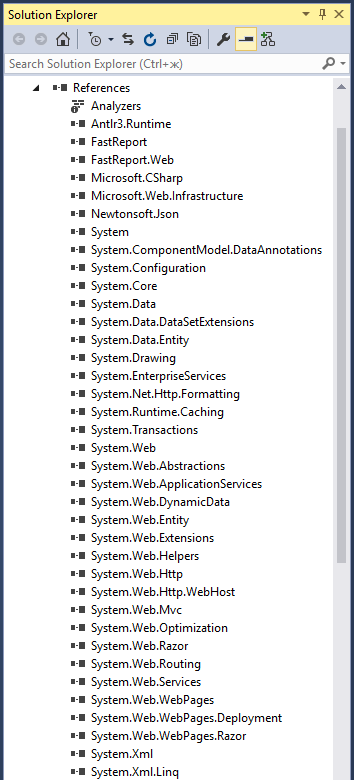
打开控制器HomeController.cs。 将缺少的库添加到uses部分:
using System;
using System.Collections.Generic;
using System.Linq;
using System.Web;
using System.Web.Mvc;
using System.Web.UI;
using System.Runtime.Caching;
using System.Text;
using System.IO;
using FastReport;
using FastReport.Web;
using FastReport.Utils;
using System.Web.UI.WebControls;
using FastReport.Export.Html;
using FastReport.Data;
using System.Net.Http.Headers;
using FastReport.Export.Image;
using System.Net.Http;
我们将在Index方法中显示OnlineDesigner。 不过,首先我们要创建一个Web报表对象和一个用于存储报表文件的缓存。 我使用缓存是为了避免将文件保存在服务器上:
private WebReport webReport = new WebReport(); //Report object

 MemoryCache cache = MemoryCache.Default; //Cache

 public ActionResult Index(HttpPostedFileBase upload)
 {
 webReport.Width = Unit.Percentage(100);
 webReport.Height = Unit.Percentage(100);
 string report_path = GetReportPath(); // The path to the folder with reports
 System.Data.DataSet dataSet = new System.Data.DataSet();
 dataSet.ReadXml(report_path + "nwind.xml"); //Read database
 webReport.Report.RegisterData(dataSet, "NorthWind"); // Register the data in the report
// If you do not use the cache, then load the report from the server
 if (System.IO.File.Exists(report_path + "report.frx"))
 {
 webReport.Report.Load(report_path + "report.frx");
 }
// If you are using a cache, then load a report from it
 if (cache.Contains("1"))
 {
 webReport.Report.Load(cache["1"] as Stream);
 }

 // Online-Designer settings
 webReport.DesignReport = true;
 webReport.DesignScriptCode = false;
 webReport.Debug = true;
 webReport.DesignerPath = "~/WebReportDesigner/index.html";
 webReport.DesignerSaveCallBack = "~/Home/SaveDesignedReport";
 webReport.ID = "DesignReport";
 ViewBag.WebReport = webReport; //Pass the report to View

 return View();
 }
获取报告路径的方法:
private string GetReportPath()
 {
 return this.Server.MapPath("~/App_Data/");
 }
接下来,我们添加上传文件的方法:
[HttpPost] // Attribute indicates that the method is processing the Post request
 public ActionResult Upload(HttpPostedFileBase upload)
 {


 if (upload != null)
 {
 // Get file name
 string fileName = System.IO.Path.GetFileName(upload.FileName);
 // Save report in cache
 cache.Add("1", upload.InputStream, DateTimeOffset.Now.AddMinutes(1));
 // If you save to a file on the server
 upload.SaveAs(Server.MapPath("~/App_Data/report.frx"));
 }
 return RedirectToAction("Index");
 }
请注意DateTimeOffset.Now.AddMinutes(1)参数。 它指定缓存的有效期。
现在我们需要一个在线设计器中保存报告的方法:
[HttpPost]
 // call-back for save the designed report
 public ActionResult SaveDesignedReport(string reportID, string reportUUID)
 {
 ViewBag.Message = String.Format("Confirmed {0} {1}", reportID, reportUUID);

 if (reportID == "DesignReport")
 {
//Save report in cache
 cache.Set("1", Request.InputStream, DateTimeOffset.Now.AddMinutes(10));

 // If the report is saved to the server /*************************************/

 Stream reportForSave = Request.InputStream;

 string pathToSave = Server.MapPath("~/App_Data/DesignedReports/test.frx");


 using (FileStream file = new FileStream(pathToSave, FileMode.Create))
 {
 reportForSave.CopyTo(file);
 }
/*************************************/
 }
 return View();

 }
我们为这个方法创建一个单独的视图SaveDesignedReport.cshtml:
@ViewBag.Message
它仍然是实现下载报告文件的方法:
public FileResult GetFile()
 {
 Stream str = cache["1"] as Stream;
// Prepare a file for download from the cache
return File(str, "application/octet-stream","test.frx");
// If you used saving report to the file on the server
return File(Server.MapPath("~/App_Data/DesignedReports/test.frx"), "application/octet-stream", "test.frx");
 }
现在考虑索引页面的视图(Home-> Index.cshtml):
@{
 ViewBag.Title = "Home Page";
}
Select file
@using (Html.BeginForm("Upload", "Home", FormMethod.Post, new { enctype = "multipart/form-data" }))
{


}

 @using (Html.BeginForm("GetFile", "Home", FormMethod.Get))
 {

 }

@ViewBag.WebReport.GetHtml()
在顶部我们显示页面的标题。 接下来,使用BeginForm助手来创建一个带有文件选择按钮的表单。 参数指定处理器方法的名称 - “Upload”,控制器名称为“Home”,处理方法为FormMethod.Post,数据编码方式为 - enctype =“multipart / form-data”。
接下来,插入文件下载字段和按钮。
在页面的右侧,我们将放置一个按钮,用其上传/下载编辑后的报告。 对于它,我们也使用BeginForm助手创建一个表单。
在最后一行代码中,我们显示从控制器收到的报告。
有必要连接文件_Layout.cshtml中的脚本:
@WebReportGlobals.Scripts()
@WebReportGlobals.Styles()
现在您需要对两个Web配置进行更改。 这些文件被称为相同,但它们位于不同的文件夹中。 第一个位于Views文件夹中。 我们加入:
…
第二个文件位于项目的根目录下。 在其中我们添加一个处理程序:
…
运行我们的应用。
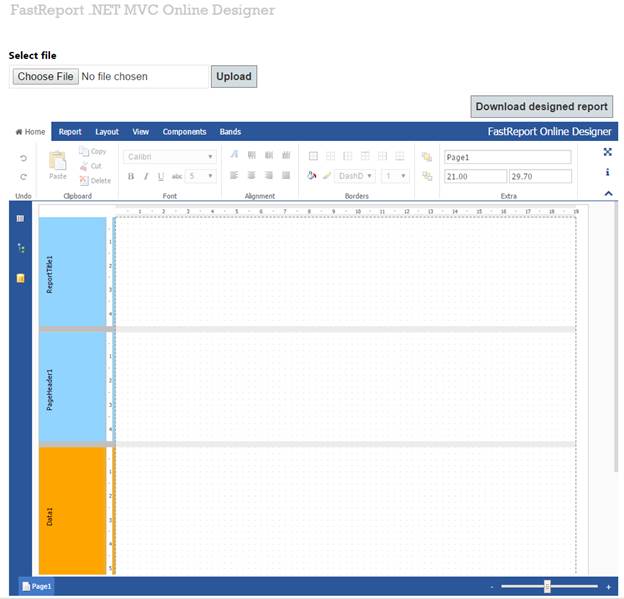
我们看到一个空的报告OnlineDesigner。 使用“选择文件”按钮从本地计算机下载报告。 从对话框中选择文件并点击上传按钮:
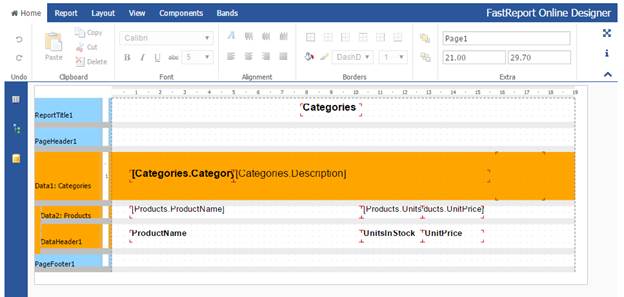
报告模板已加载。 让我们改变数据带中的背景颜色。 在“报告”标签上,我们点击“保存”按钮:
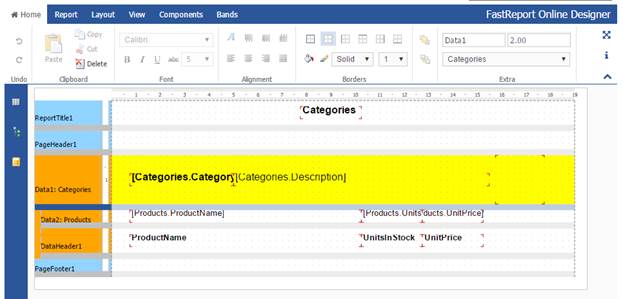
SaveDesignedReport方法起作用,我们看到右边的绿色警报:
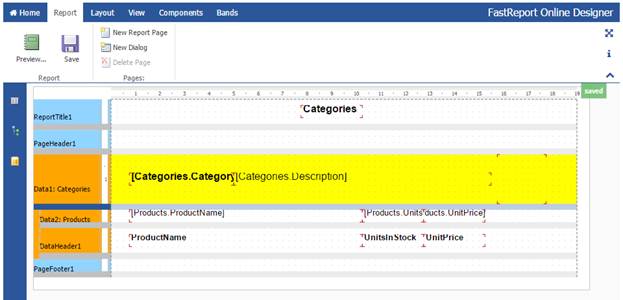
现在点击“Download designed report”按钮:
浏览器下载我们的报告 使用报表设计器打开它:
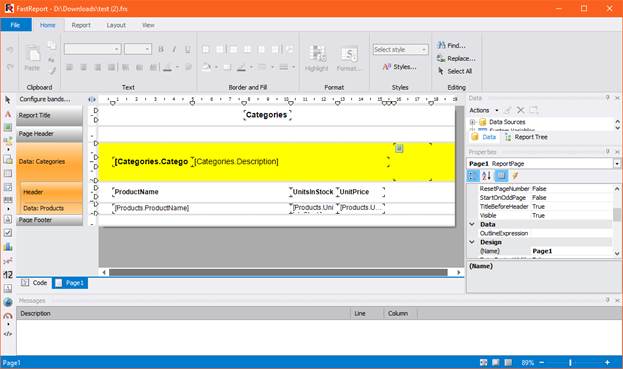
这样就得到了我们的报告,接下来可以用Online Designer进行编辑。
产品介绍 | 下载试用 | 优惠活动 | 在线客服 | 联系Elyn
推荐阅读
- FastReport VCL报表控件开发者手册
- FastReport Online Designer中文手册
- Fastreport.Net教程2016
- Fastreport.Net用户手册
- 如何在Web报表FastReport.Net中注册数据源
- FastReport.Net库以及发布注意事项
- 如何在FastReport Online Designer中订阅保存事件

欢迎任何形式的转载,但请务必注明出处,尊重他人劳动成果
转载请注明:文章转载自:FastReport控件中文网 [https://www.fastreportcn.com/]
本文地址:https://www.fastreportcn.com/post/1794.html
 返回
返回